CommsPlanmakes your comms plan work.
Where to be. When to be there. What to do when you’re there.
Where to be. When to be there. What to do when you’re there.

Bring your frequency plans, operating schedules, radio tools, and message intelligence together in one place. Spend less time keeping track of the pieces and more time putting your plan to work.
From plan to action
A useful comms plan helps you decide what to do next. CommsPlan keeps the answers close at hand as you operate.
Bring the right frequency, mode, group, and radio together for each part of your plan.
02Keep daily schedules, nets, and changing conditions in view. See what’s happening now and what comes next.
03Move from the plan to the task: review traffic, prepare a message, use a form, or follow your operating procedure.
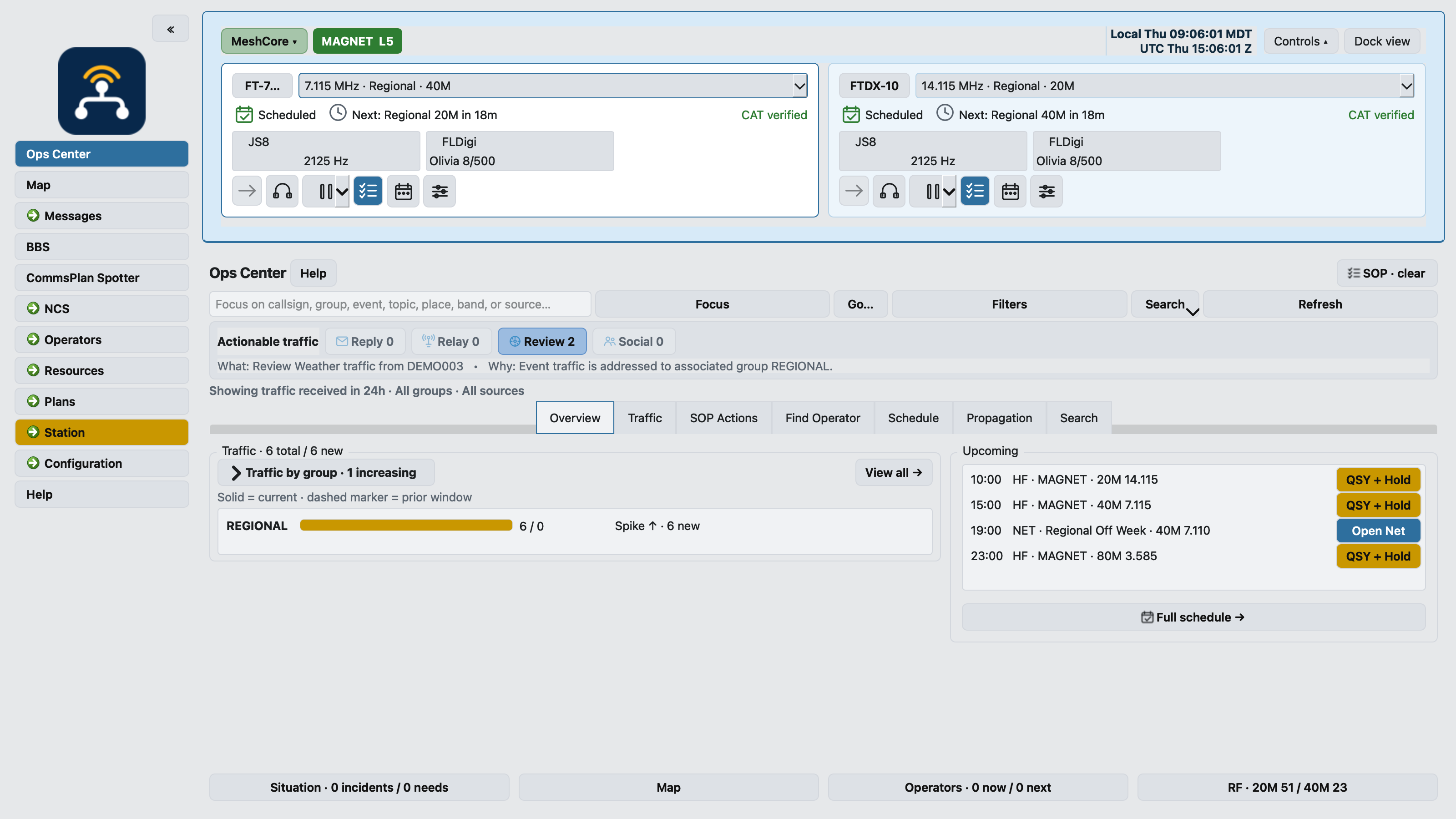
Select a screenshot for a closer look. These screenshots use a demonstration station, scrambled identities, and fictional exercise messages. Radio readbacks and Mesh connection indicators are simulated; no live radio or Mesh connection was used.
Where and when
Build a frequency plan from your daily schedule, nets, and standard operating procedures. Assign it to a radio and review how the pieces fit together. When plans change, you can see which operating windows are affected.
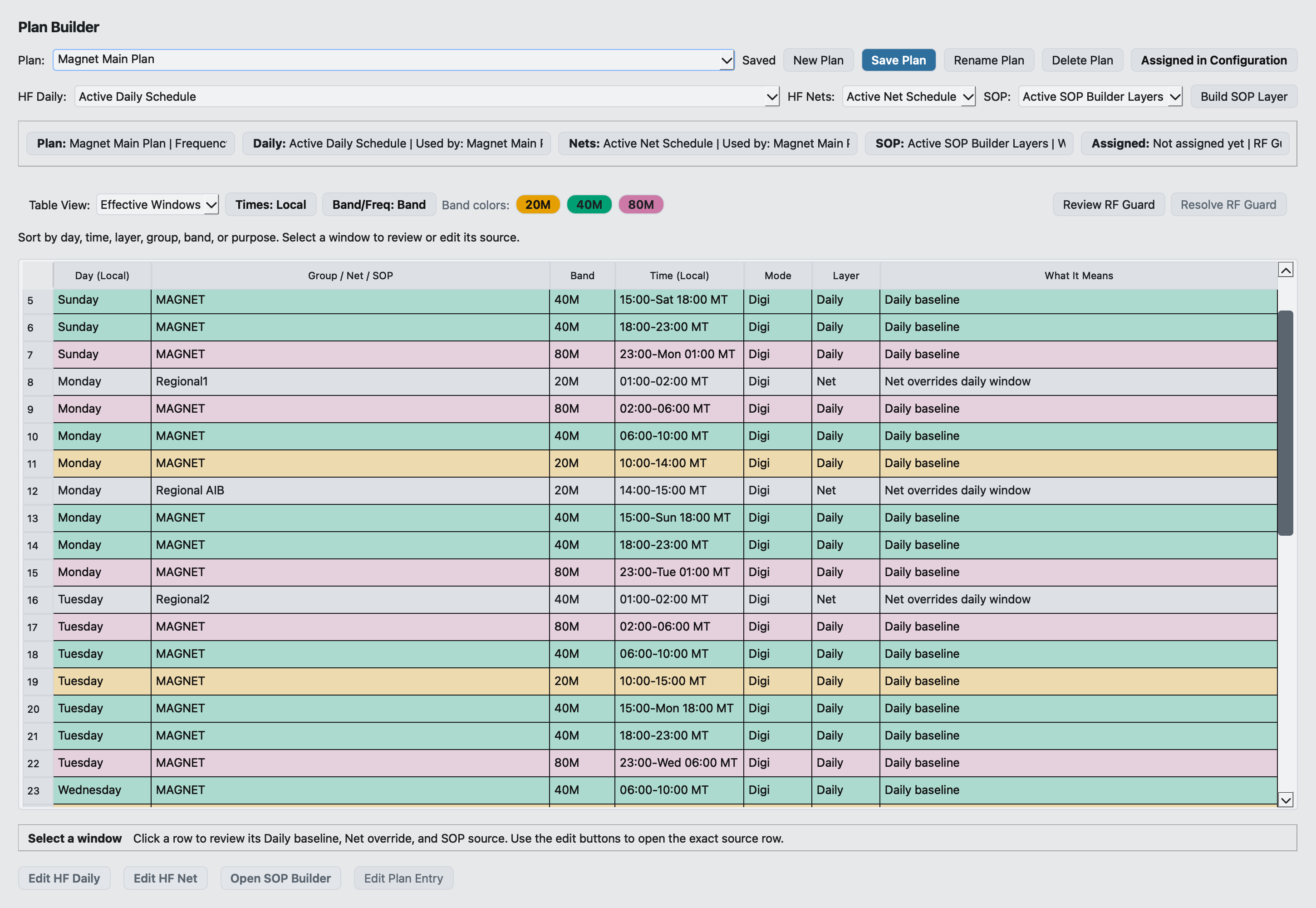
Explore plans and scheduling →
Assign a reviewed Frequency Plan to follow its schedule. Holds, busy checks, and manual controls help you manage changes while you operate.
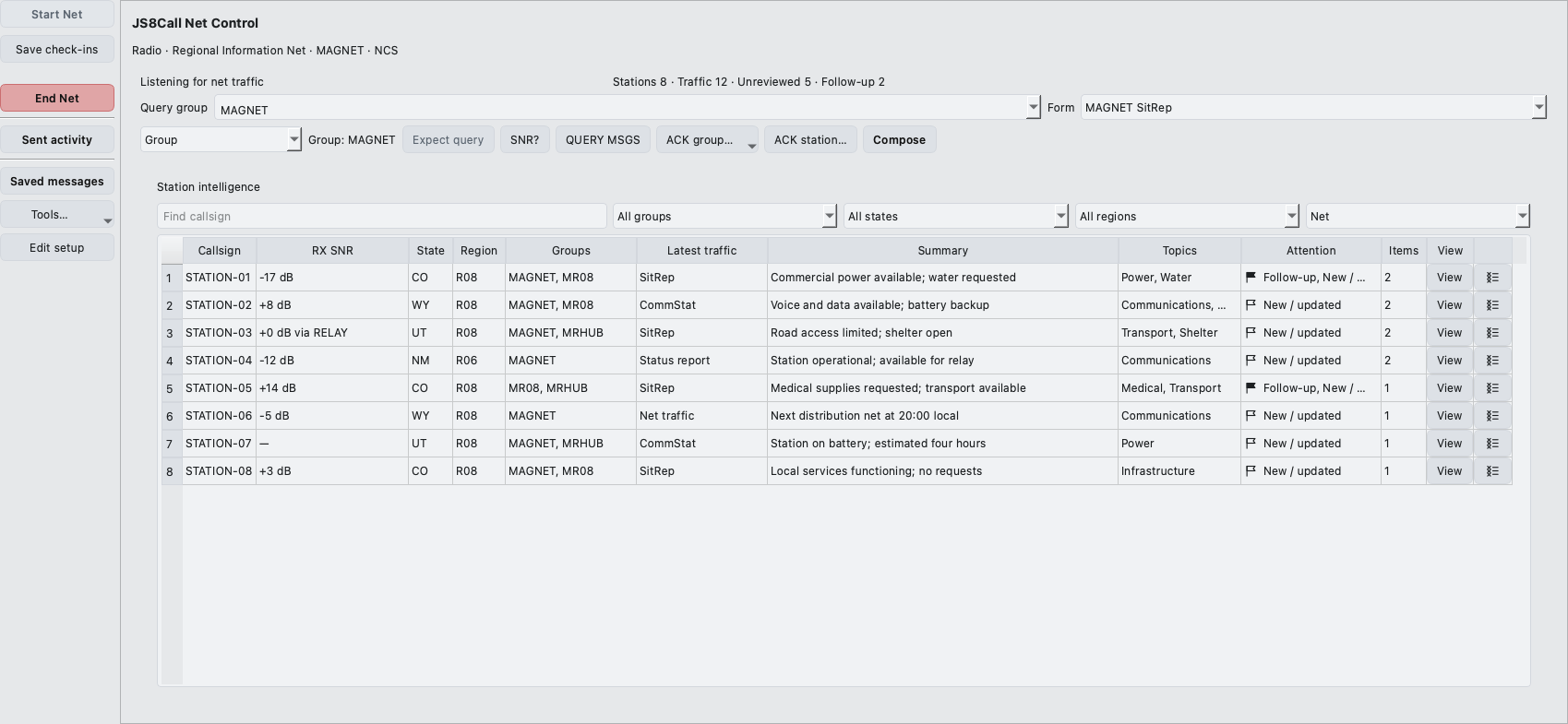
JS8 net control
Scan decoded Spotter and CommStat summaries, filter stations by group, state or region, and follow up with the right station. Switch between Traffic and Compose while keeping your working context.
Message Intelligence
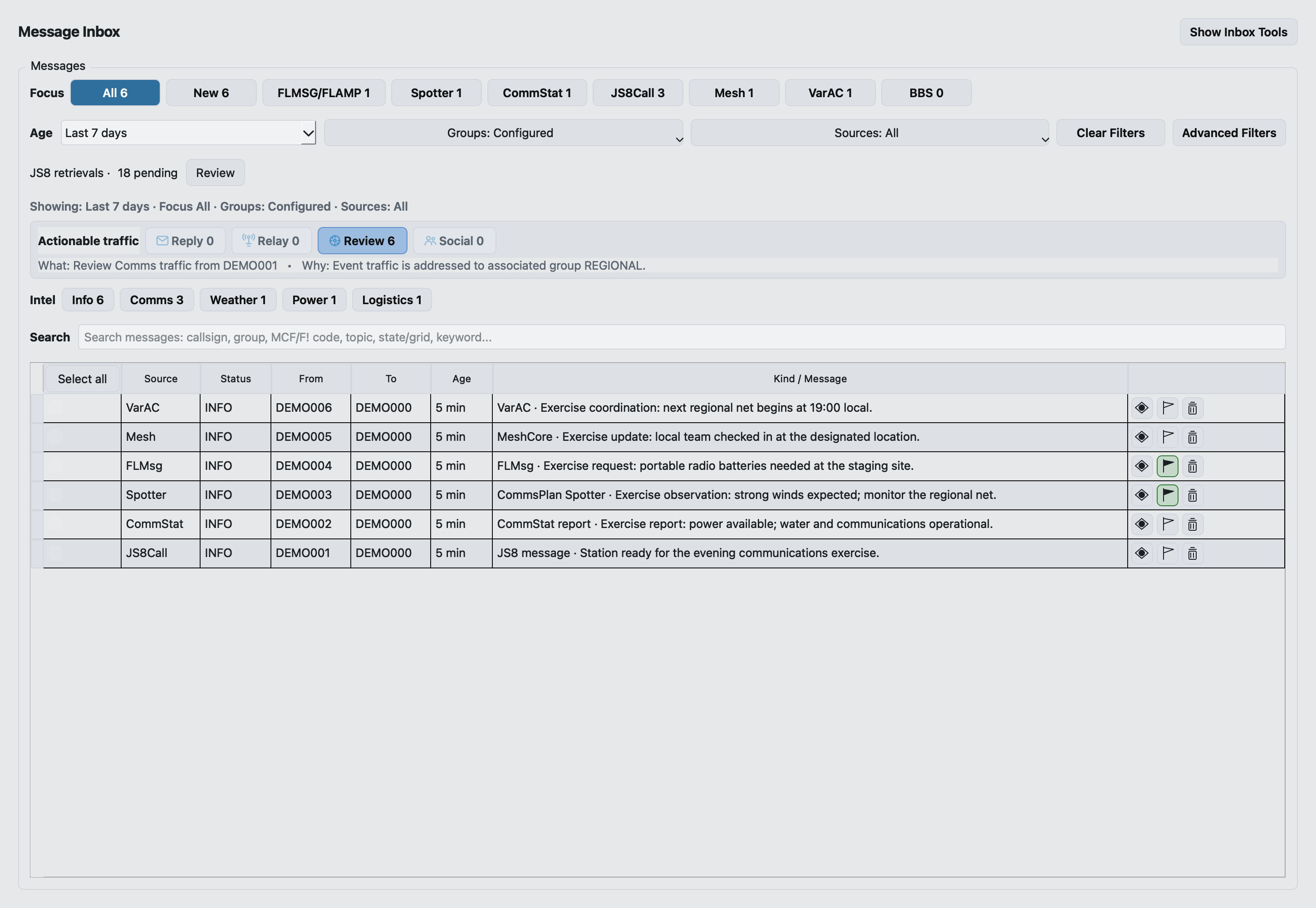
Bring supported traffic into one inbox. Scan summaries, topics, locations, and status to find what needs attention. Open the original message whenever you need the details, including where it came from.
Comms Unity
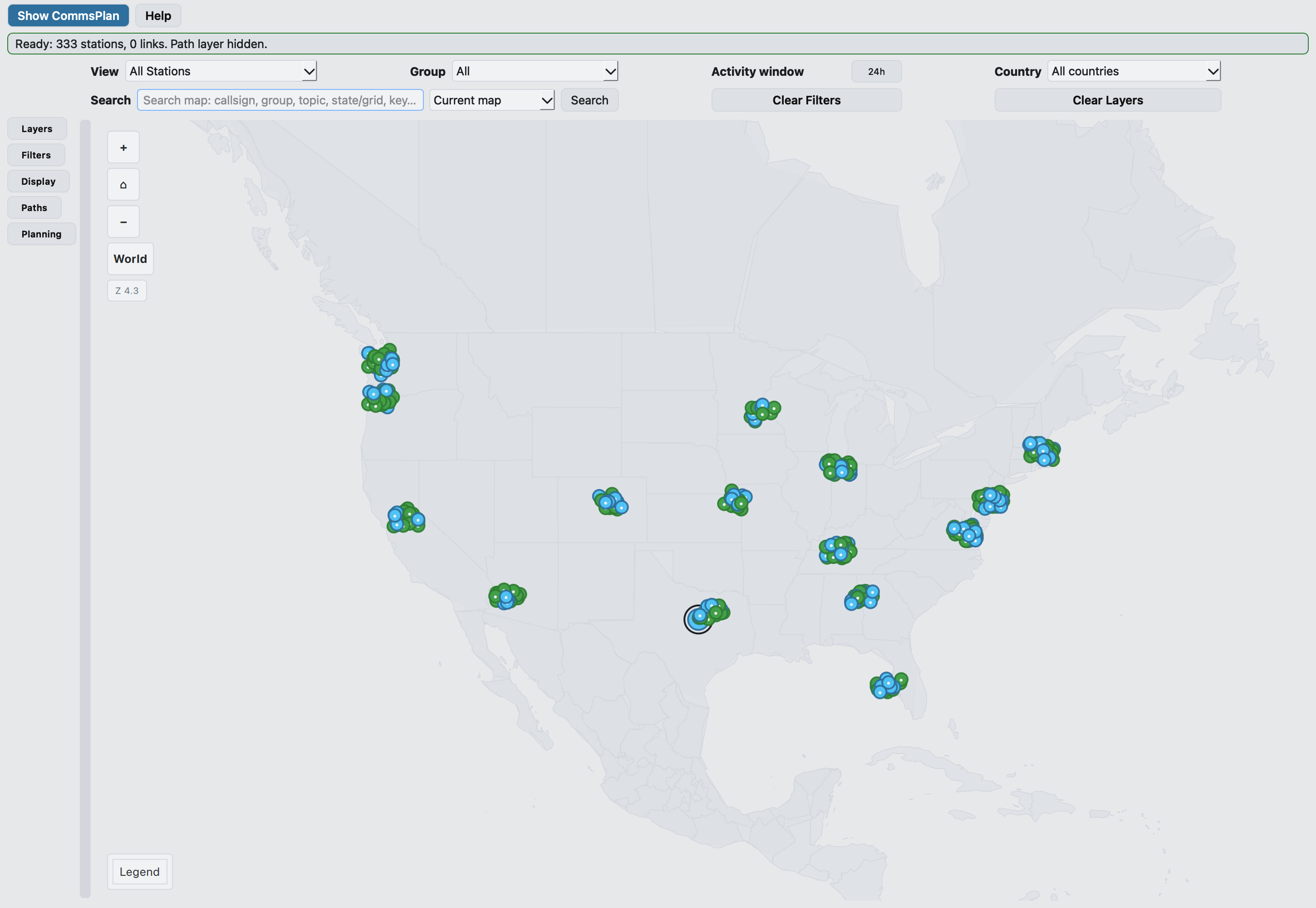
Your plans, radios, applications, and traffic all have a part to play. CommsPlan connects them in one workspace, so you can move from the schedule to a message to the map without losing track of the task.
One radio is enough. Add more when you need them, with separate settings and schedules for each.
Bring FLDigi, JS8Call, VarAC, and other supported applications into your workflow. Use built-in Spotter watches and forms, plus the CommStat integration, to follow useful reports.
Station data stays on your computer, and the map works offline. Source labels help you tell received traffic from imported or Internet-assisted information.
Ready when you are
CommsPlan runs on Windows, Linux, and macOS. Choose your next step and we’ll help you get going.
Find the right download and follow the steps for your computer. Upgrading? Start with a backup of your station.
02Use the station checklist to connect your radio tools and review your first schedule.
03See how plans, messages, and the map help you work through a typical operating session.
The support guide helps you describe what you’re seeing and gather the details needed to get help.