
The CommsPlan operating picture
Where to be. When to be there. What to do when you’re there. CommsPlan keeps those three questions connected. Your radio and schedule stay in view while you review traffic, prepare a message, or explore the map. One radio is enough, and each additional radio can have its own tools and schedule.
The JS8 NCS view below shows the 2.0.9 interface; other images illustrate the individual workspaces. Find available downloads on the GitHub Releases page.
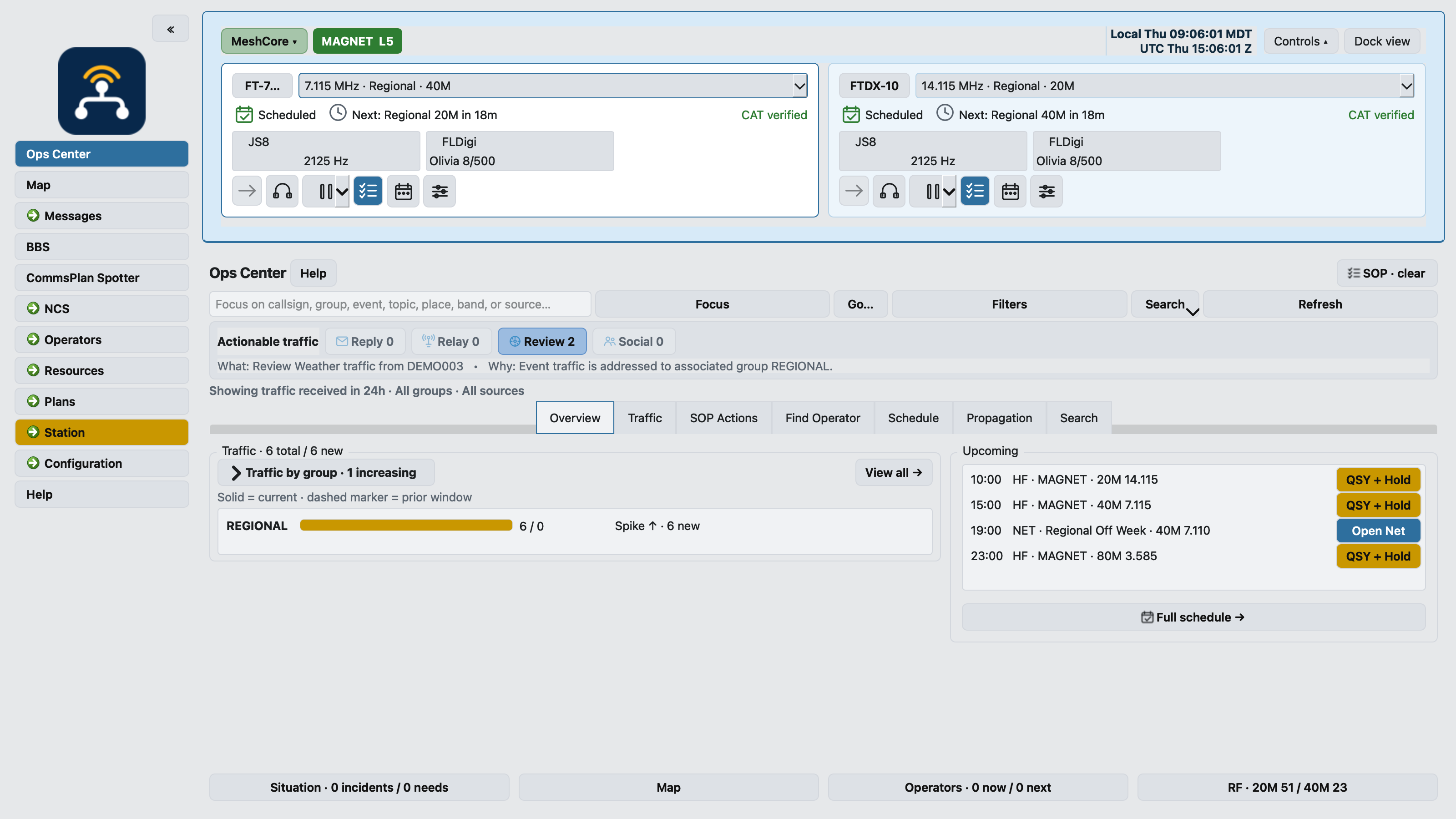
Demonstration screenshots use scrambled identities and fictional exercise messages. Radio readbacks and Mesh connection indicators are simulated; no live radio or Mesh connection was used. Detail images show individual workspaces.
Where, when, and what
- Where: Your frequency plan brings frequencies, modes, groups, and radios together.
- When: Daily schedules and nets tell you what’s current and what comes next.
- What: Messages, forms, and operating procedures help you put the plan into action.
This is Comms Unity in practice: moving between your plan, your tools, and incoming information in one workspace.
Station setup and radio services
Start with Station Setup, your checklist for station details, radio tools, connections, and schedules. Each radio keeps its own settings, so adding a second radio does not mix up the first radio’s tools or plan.
Launch Control lets you choose which applications to monitor, which to start automatically, and which to start yourself. CommsPlan checks each radio’s tools separately to help you see what is ready.
Import frequencies and build a Local Comms Group
Use Resources → Frequencies → Frequency Catalog for reusable channel and frequency references. To bring in radio programming exports:
- Choose Import radio files…, then Choose CSV/TSV files…. CHIRP, RepeaterBook native and BTECH layouts are recognized, along with common generic header names. Export a CSV/TSV from your programming tool first; binary radio images, XLS/XLSX workbooks and radio programming JSON are not supported.
- Choose the intended Service. CommsPlan does not determine the service from frequency alone. For different services or generic layouts, import separate batches so the service and mapping apply to the intended files.
- Review the detected format and records. Valid records start checked; uncheck entries you do not want. Select all and Clear selection operate on valid records. Rows with errors cannot be imported; inspect warnings before continuing.
- For unfamiliar generic headers, open Column mapping…, map receive/transmit frequency, channel name, mode or comment, and choose MHz or Hz. Review mapping rebuilds the preview. The mapping applies across the selected generic files; an ambiguous column needs an explicit choice rather than a guess.
- Check the channel name in the table, then open Selected record details for RX/TX, mode, tones, bandwidth, diagnostics and original source fields such as offset or notes when supplied. Choose Import N records. Exact normalized duplicates are skipped without overwriting existing edits. Export formats with different content may remain separate entries even on the same receive frequency.
One batch supports up to 20 files, 10 MiB per file and 2,000 preview records. For larger exports, split the data into smaller files/batches. Imported records become station-owned catalog references. Missing or disabled transmit settings remain explicit; do not assume that an RX-only entry is simplex.
The Import / Export tab supports CommsPlan's catalog-exchange JSON. It is a separate workflow from radio CSV/TSV import and does not accept arbitrary radio programming JSON.
Add catalog entries to a new or existing group
Open Configuration → Main → Local Comms Groups. Choose Add Configuration, type the destination in the editor's Group field, then choose Add from catalog…. You can name a new group here without first saving a manual frequency or enabling the group. For an existing group, confirm that the editor names the intended destination.
Type to filter, narrow by service, and check the frequencies you want. This picker starts with no entries checked. Selections remain available across pages and searches; check the total and group in Add N frequencies to [group] before adding. Already added entries cannot be added again to the same group. The same catalog entry can be used by another group. Cancel leaves the group unchanged.
Each added configuration keeps a saved programming reference, including channel name and the available frequency, tone and mode details. Later catalog changes do not replace it automatically. Select the saved group and choose Review catalog changes… to compare the saved and current versions, then explicitly accept the updates you want. Missing or retired sources retain the saved reference.
Editing group or notes preserves the catalog link. Manually changing Resource, Mode or Target makes that configuration a local copy, detached from later catalog updates. Removing a group configuration leaves its catalog record available. Catalog Used by counts do not include Local Comms Group references; the group keeps its saved programming version even if the catalog source is removed.
Use the reference in a Local SOP
In a Local SOP action, select the local group. On What, choose an Assigned frequency, then Insert frequency reference to append its readable programming details to Procedure. Review the text and choose Use action, then save the SOP through its normal workflow. Group or catalog changes do not silently rewrite Procedure text already saved in an SOP.
Local Comms Groups are reusable references for SOP local-net reminders. Local Nets is the separate timed-reminder workflow. Importing frequencies, adding them to a group or inserting a reference does not program a radio, tune, transmit or start scheduler automation. The saved name, RX/TX and tone details remain useful when an operator needs to program a radio manually.
Software discovery and shared message folders
In Configuration → Software, choose the radio, software family and component before using Find. Find again… refreshes the search; review the suggested application and paths before applying them. JS8Call installation choices and native-profile choices are separate, so finding an executable does not require a profile to have been discovered. An installation path is not proof of API readiness.
Fast Light components have their own discovery results. Message Folders uses folder controls rather than an application search. You may intentionally share message/ICS, templates, log/check-in or RX/TX data folders across radios; these choices do not block configuration. Independently controlled applications still need the correct native settings identity and endpoints. Review shared folders so operators understand which messages and files are common to those radios.
If an unfinished edit prevents switching components, use Save or Cancel in that editor first. The selected task and visible editor remain together.
Message Intelligence
Message Intelligence helps you see what the traffic is telling you. It brings supported messages into one inbox and adds summaries, topics, locations, status, and cues that help you find what needs attention. Open the original message to check the details and where it came from before deciding what to do next.
Messages can come from JS8Call, CommsPlan Spotter, CommStat, FLMsg, FLAmp, VarAC, BBS, MeshCore, and Meshtastic. Source labels help you distinguish received traffic from imported or Internet-assisted information. A summary keeps the original message available; an imported report does not mean your radio heard it.
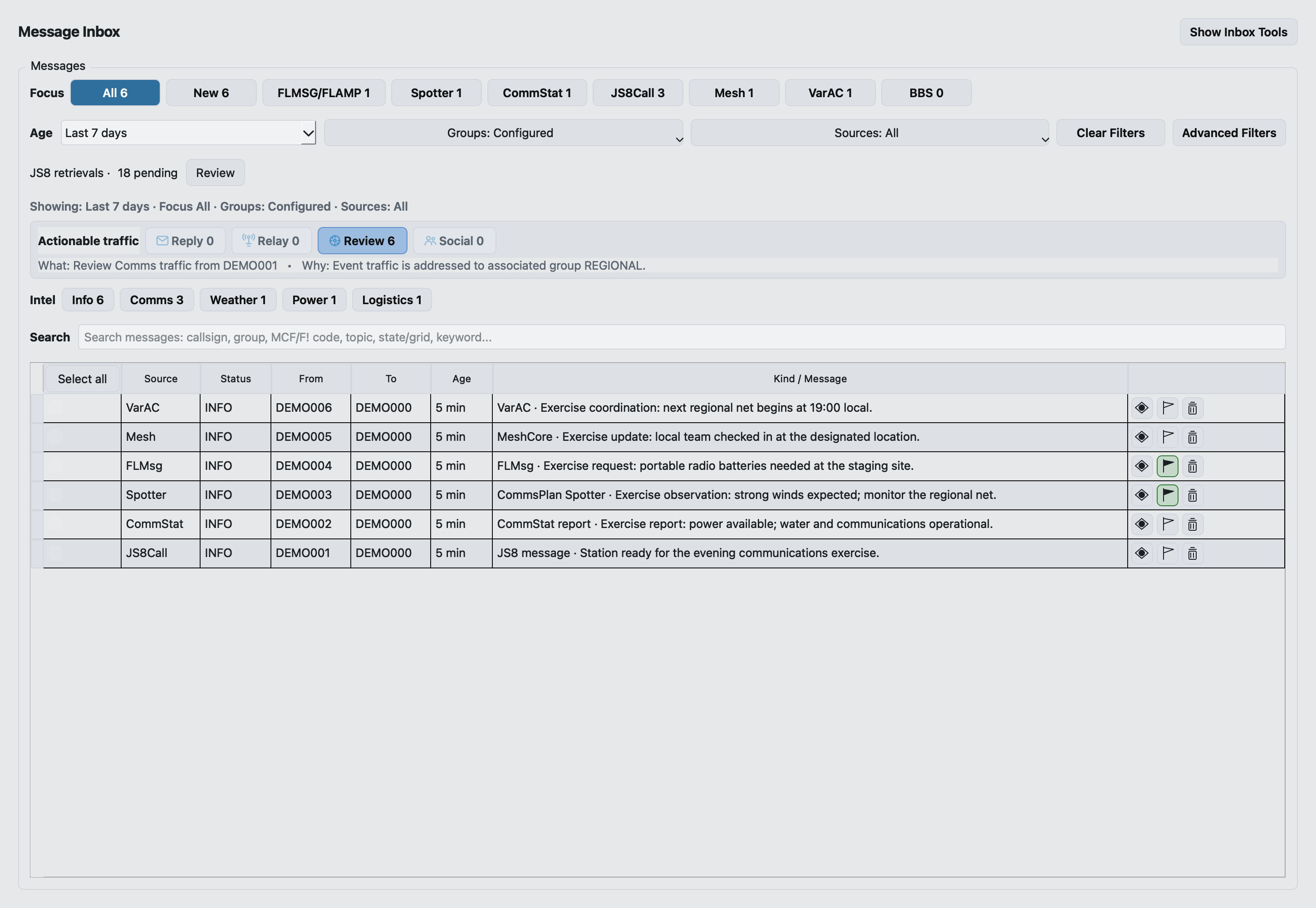
Demonstration inbox: the displayed traffic is fictional exercise data with scrambled identities and no private operator messages.
CommsPlan Spotter and CommStat
Use the built-in CommsPlan Spotter to watch for information of interest, manage forms, and set up permitted responses to JS8 traffic. Its Forms Library is shared with Compose and Net Control. Preview a form before importing it; you can start with the bundled forms and add your own later.
The optional JS8Spotter companion is a separate application. You can launch it from CommsPlan or import selected data. Imported information stays labeled so you know where it came from.
CommStat is also a separate companion. Supported reports can appear in the same inbox with their status and source information. An Internet-assisted or imported report is not evidence that your radio heard it. Use Compose for supported CommStat radio messages; other CommStat actions stay in CommStat.
JS8 net control
NCS brings received Spotter forms, CommStat reports and substantive net traffic into station intelligence. Scan decoded summaries and topics, filter callsigns by group, state or FEMA region, then View the underlying traffic. Exclude and Restore affect the local net view while preserving source messages. Relevant relayed reports are included with the original author and relay station shown in Details. Generic SNR?, QUERY MSGS and HEARING exchanges are filtered; substantive messages that merely mention those terms remain available.
RX SNR beside Callsign is the latest retained local receive reading in dB. Its tooltip gives the transmitting station and observation time when available. For a relayed report, via [relay] means relay-to-your-receiver quality, not the original author's direct signal. A dash means no valid reading was reported for that link; a retained reading is not proof of current reachability.
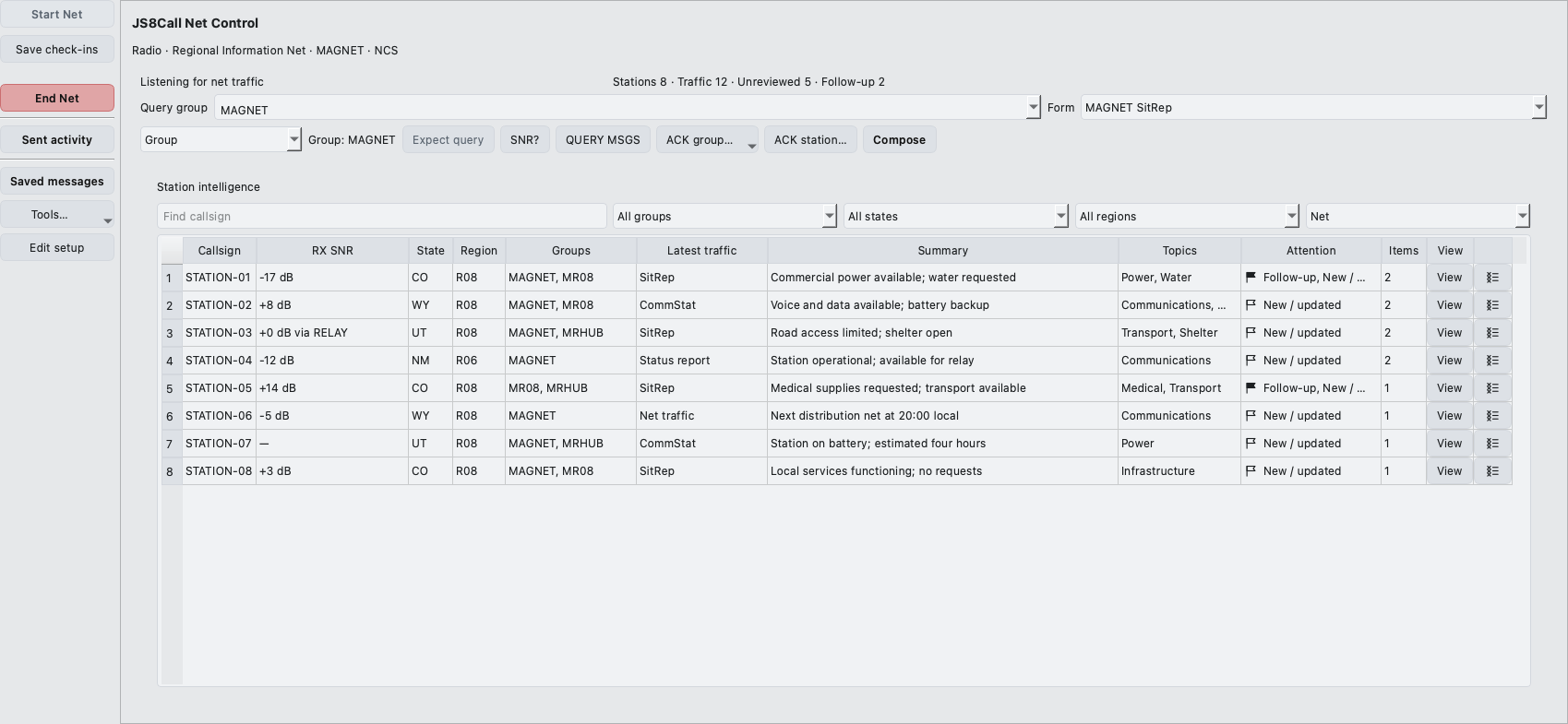
Current 2.0.9 UI with fictional station labels, exercise reports and simulated RX SNR values. No live radio, RF transmission or confirmed delivery is represented.
Choose Expect forms and group/station targets as the net develops. Compose switches back to Traffic without losing the draft. A separate saved-message library holds repeatable announcements across nets. Sent activity records the exact destination and submission outcome; JS8Call submission is not proof of RF transmission or delivery. The listening status retains the latest send outcome. If a send is blocked or uncertain, inspect its reason and JS8Call before retrying; if requested, deselect the existing target in JS8Call. CP requires a verified clear before sending the newly addressed message and does not retry automatically. A net retains its radio/application source from Start; after repairing a wrong source configuration, save/end the old session and start a new one.
Spotter Forms uses direct mapping checkboxes, Use for nets and optional group relevance. These guide form tools without requiring a particular incoming form before a station may participate. Ops Prepare net opens the exact occurrence, radio and service for review; it does not tune, transmit or start the net.
Plans and scheduling
Plan Builder brings your HF Daily schedule, HF Nets, and SOP (standard operating procedure) layers into a named frequency plan. Assign a plan to a radio after reviewing its operating windows. A valid assignment follows automatically after validation; Pause/Resume and source choices keep you in control.
Use HF Daily for your regular schedule and HF Nets for net times. SOP layers let you plan for changing operating conditions. Ops Center shows the current window and what comes next. Holds, busy checks, and manual controls help you manage changes while you operate.
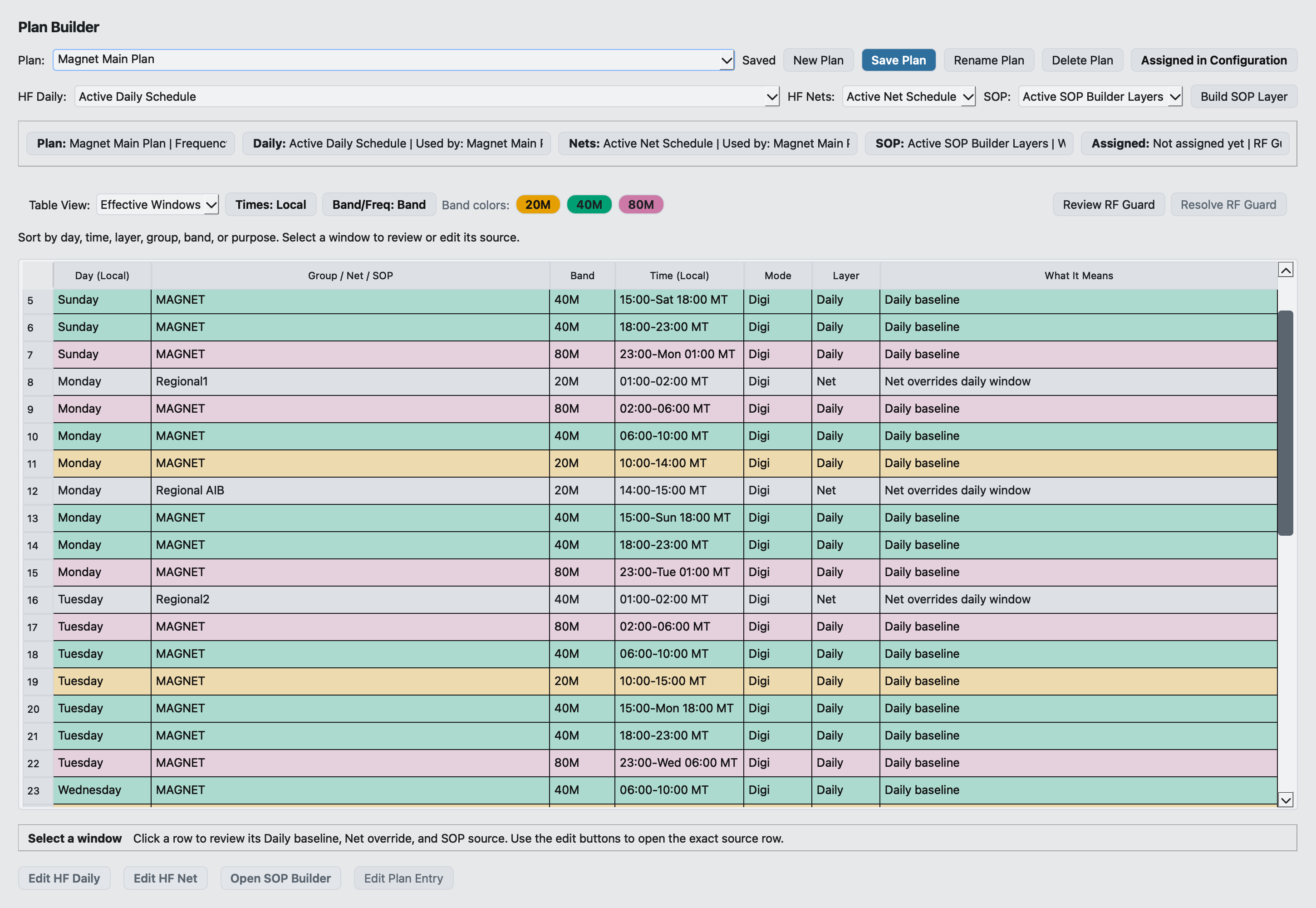
Demonstration plan: frequency, net, and procedure names are sample station data for illustration.
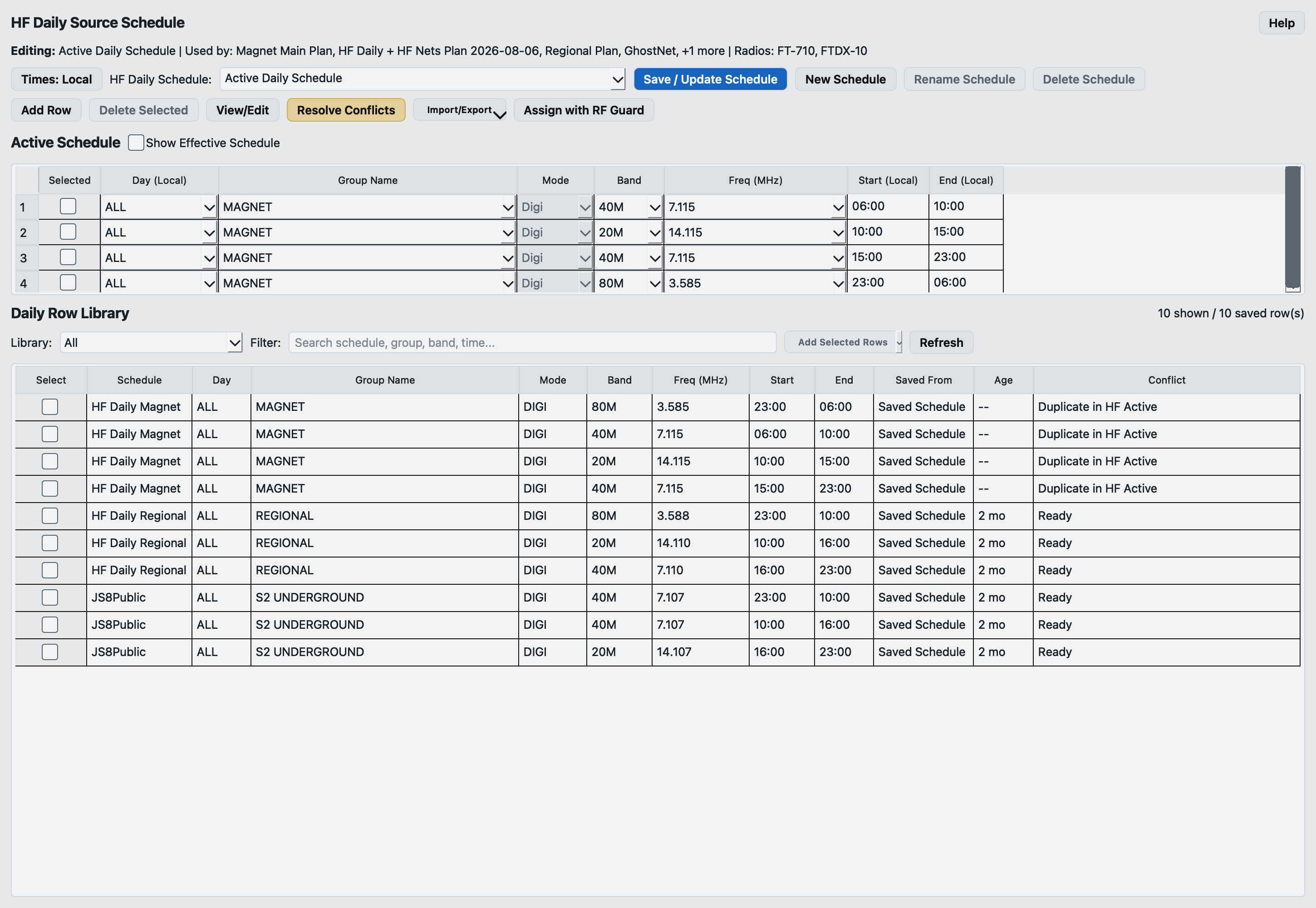
Demonstration schedule: the windows and labels are sample operating data, not a live station schedule.
Messages and Compose
Use Messages to review incoming traffic and Compose to prepare an outgoing message. Filter by source, age, group, or topic, or search for a word or callsign. Open a message to see its original content and useful context.
Compose offers the actions supported by your selected radio application or connection. These include supported forms, JS8Call messages, CommStat radio messages, VarAC files, and Local Mesh messages after setup.
Opening Compose does not send anything. Review the radio, recipient, and message before choosing the final send action.
Map and Call Finder
The map works with bundled geography and local station data, so you can use it without an online map account. Show stations, paths, schedules, message locations, and available mesh-node positions. Choose layers and filters to focus on the information you need, then select an item to check its source and age.
Call Finder searches locally loaded US amateur and GMRS license records, plus Canadian amateur records. Optional postal data can help estimate a location. These estimates do not show where an operator is right now. See What’s new in 2.0.11 for release updates and details.
Use the map to support your decisions. A marker or path does not guarantee that a station is reachable or that a message will be delivered.
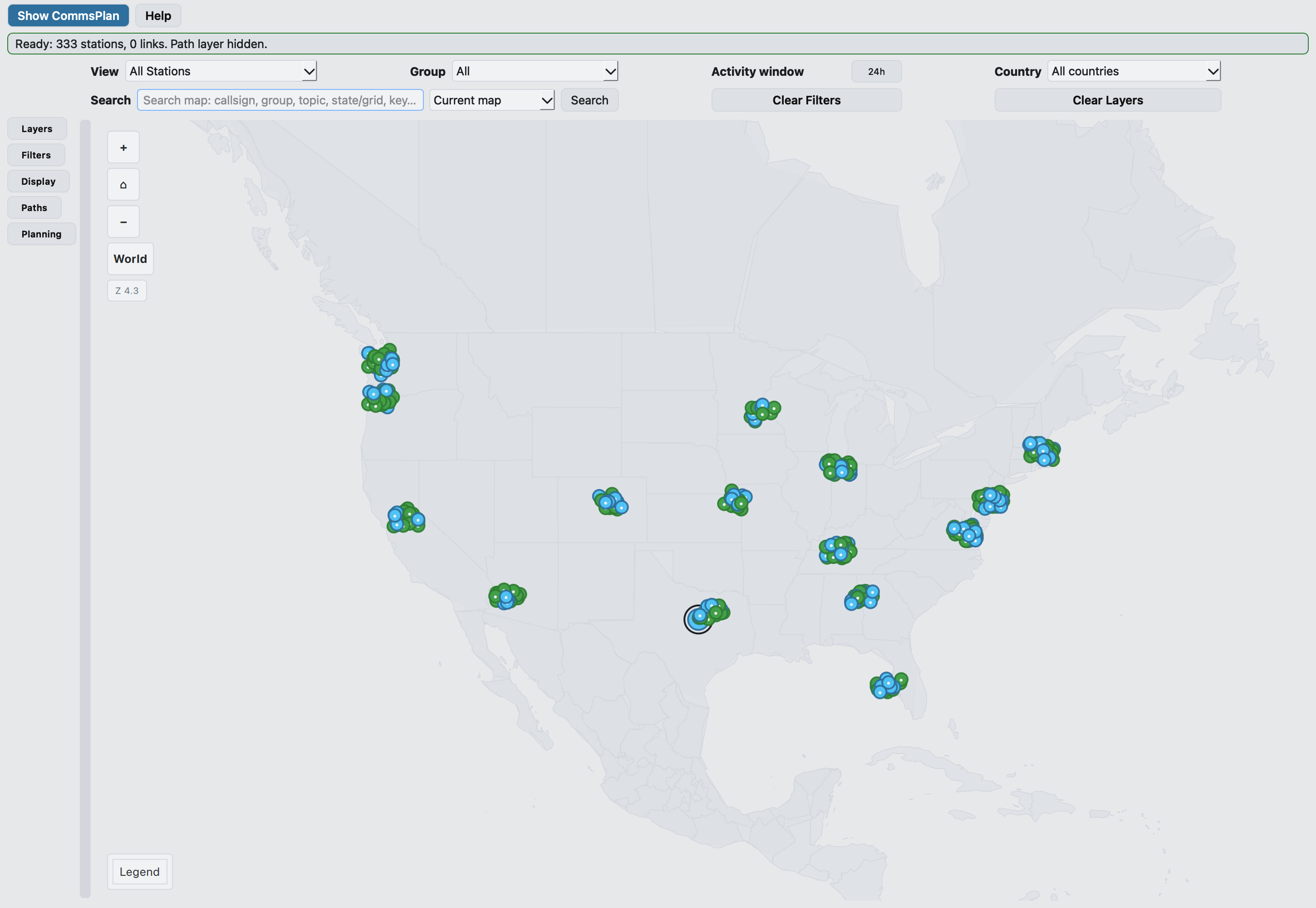
Demonstration map: station markers and regional context are illustrative; they do not disclose a live operator location or guarantee current reachability.
Local Mesh
Connect a supported MeshCore or Meshtastic device to bring local mesh text into Messages and available node positions onto the map. Mesh devices work alongside your HF radios, with their own connection settings.
Sending is off by default. After setting up and connecting a device, enable Allow Send, review the channel policy or choose a known direct node, and open Messages → Compose → Local Mesh. Review the message and destination before confirming the send.
See Connect Local Mesh for pairing and connection help.
Continue
Group tuning and Subspace awareness
Each Operating Group frequency configuration can request Auto-Tune on QSY. Manual QSY uses that exact configuration’s current saved choice. Antenna tuning requires FLRig and a supported radio; it is separate from dial changes and can key the transmitter. The in-app Help explains the sequence and safety checks.
Subspace reported-hearing context supports Map review without claiming a live connection. Received-file monitoring provides captured text review, export and source management; discovering a file does not certify its sender or a completed transfer.